Enforce Room Assignment for Guest-Requested Rooms
Stay is enhanced to enforce users to assign rooms based on a guest request for any of the following room attributes, during booking:
-
Accessible rooms (ADA-Compliant)
-
Connecting Rooms
The property can configure whether room assignment must be made mandatory for accessible or connecting rooms individually. Once configured, when the guest requests for an accessible or connecting room during the booking flow, one of the following occurs:
-
The room is assigned as per the guest request and the reservation is tagged as Guaranteed.
-
The requested room is not assigned, and the user overrides the guest request and instead assigns a room that is a non-ADA compliant or non-connecting room. The reservation is tagged as Requested.
To support this feature, the following changes have been made:
-
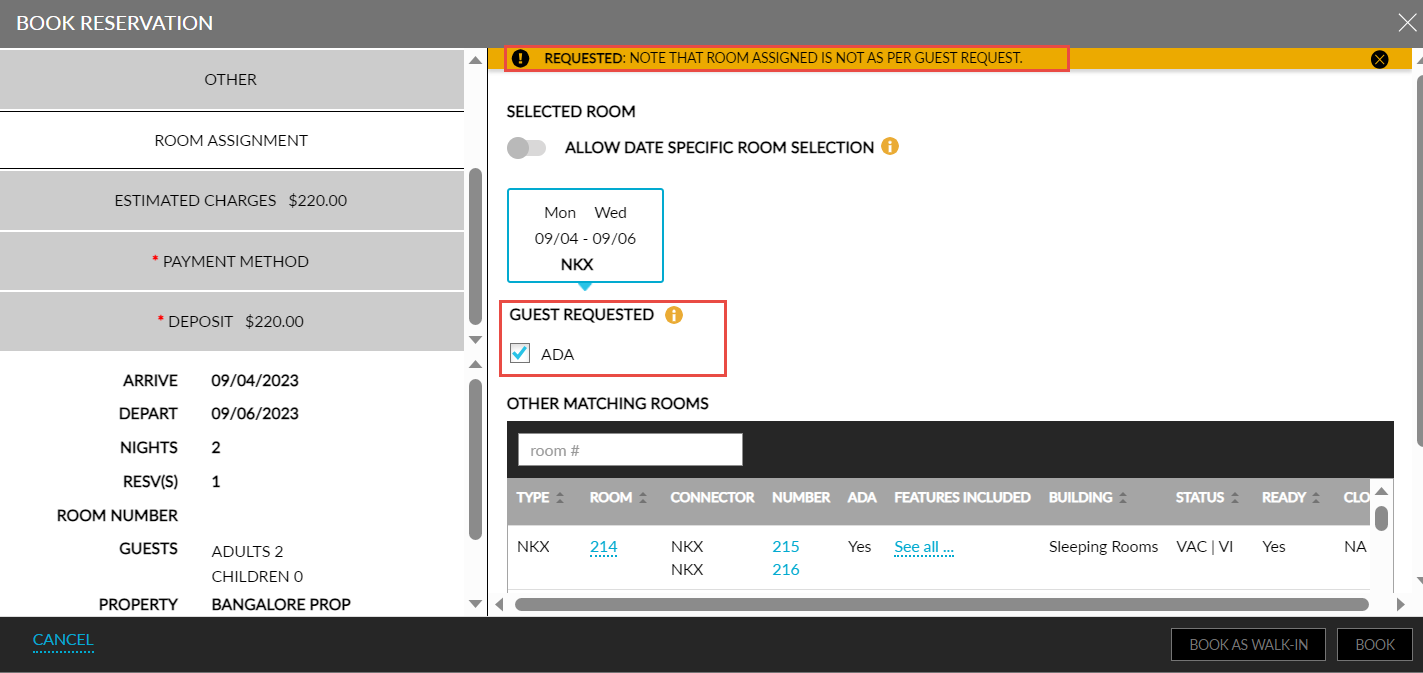
A new section, Guest Requested, is displayed in the Room Assignment tab of the Book Reservation screen. Users will be displayed two options in this section: ADA and Connecting Rooms. Users can select the preferred option during the booking flow and assign a room number that meets the guest’s request. When room assignment is mandatory, a room must be assigned matching the guest request when the reservation is created.
-
If users want to select from other matching rooms, a new column, ADA, is introduced in the Other Rooms Matching section of the Room Assignment tab. The value Yes is displayed in this column to indicate rooms that are ADA-compliant.
-
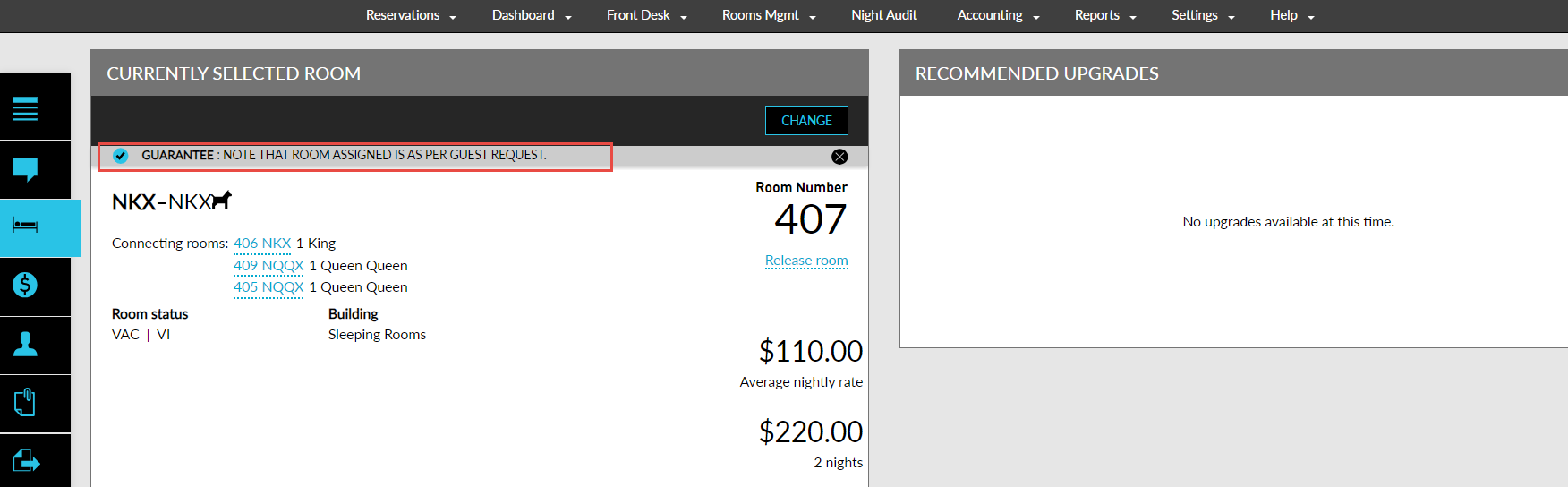
When the guest request is met for a reservation that is an ADA and/or connecting room is assigned for a reservation, then the following message is displayed in the Currently Selected Room section of the reservation: Guarantee: Note that room assigned is as per Guest Request
-
When the guest requests for an ADA-compliant/connecting room, but the user assigns a room that does not match these attributes, then the following message is displayed in the Currently Selected Room section of the reservation: Requested: Note that <ADA> <Connecting > room assigned is not as per Guest Request.
-
When users do not assign an ADA room to a reservation that has requested for an ADA room in the Modify Stay screen, the following message is displayed: Note that <ADA> room assigned is not as per Guest Request.
-
When users do not assign a connecting room to a reservation that has requested for an connecting room in the Modify Stay screen, the following message is displayed: Note that <connecting room> room assigned is not as per Guest Request.
-
When users do not assign a connecting/ADA room to a reservation that has requested for a connecting/ADA room in the Modify Stay screen, the following message is displayed: Note that <ADA><connecting room> room assigned is not as per Guest Request.
-
-
When room assignment is made mandatory for accessible or connecting rooms, users cannot release the guest requested rooms assigned to reservations. The following message is displayed when users try to release a guest requested room: Room cannot be released for this reservation as room assignment is mandatory.
-
The reservation log is updated in the History section of a reservation in the following ways:
-
The log for reservations that have met the guest request is displayed in the following format: <Month, DD, YYYY HH-mm> by <user name> had assigned room as per Guest Request, tagged “Guaranteed” attribute.
-
The log for reservations that have met the guest request is displayed in the following format: <Month, DD, YYYY HH-mm> by <user name> had not assigned room as per Guest Request with <user with Stay_MandatoryRoomAssignment permission> permission, tagged “Requested” attribute.
-
-
A new permission, Stay_MandatoryRoomAssignment, is introduced to allow users to override the guest request for an accessible or connecting room and continue to book the reservation. This permission is provided to the following roles by default:
-
System Administrator
-
Stay Hotel Manager
-
Department Manager
-
Stay Hotel Supervisor
-
GSA Supervisor
-
Stay Night Audit
-
-
A confirmation screen is displayed requesting users to authenticate themselves before overriding the room selection. On clicking Save the credentials of the user with permission is captured and displayed in reservation log
-
A new section, Mandatory Room Assignment, is added to the Room Assignment tab of the Rooms Setup screen (Settings ➜Rooms & Room Types ➜Room Assignment). Users can select from the following room attributes for which room assignment must be enforced when booking a reservation:
-
ADA
-
Connecting Room
-
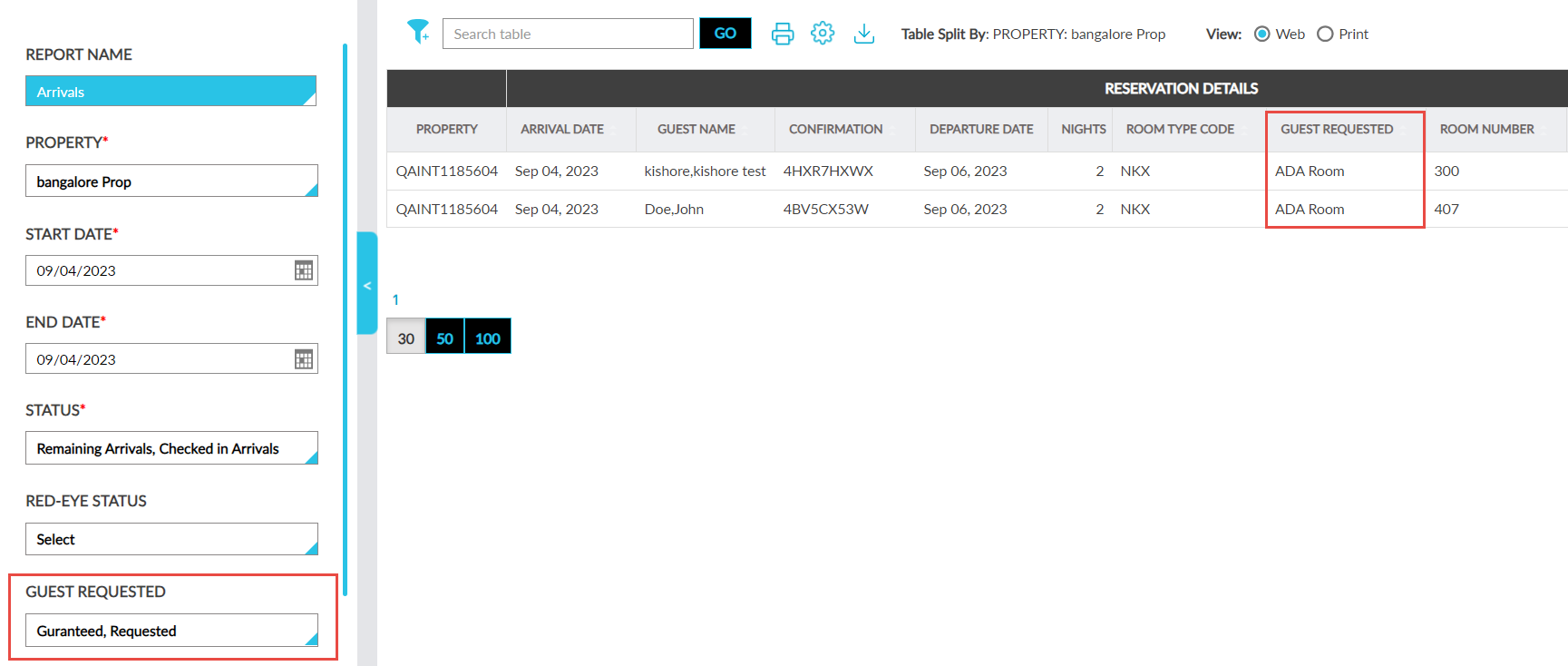
The following reports are modified to track reservations with guest requests that are tagged as Guaranteed or Requested:
-
Reservations Report (Dynamic)
-
Arrivals Report (Dynamic)
A new column, Guest Requested, is added to these reports. The values displayed in the column include ADA, Connecting Rooms, or both.
A new filter is added to these reports which allows users to filter and display reservations that are tagged as Guaranteed or Requested.